Figcraft 文档
代码驱动的专业 SVG 图表库,适用于 TypeScript / Node.js。
安装
npm install figcraft需要 Node.js 18+。该库无浏览器依赖,完全在 Node.js 中运行。
基本用法
创建 diagram.ts 文件,然后用 npx tsx diagram.ts 运行:
import { Figure } from 'figcraft'

const fig = new Figure(800, 400, { bg: '#fff' })

const a = fig.rect('输入', {
  pos: [50, 100], size: [120, 50],
  fill: '#e3f2fd', radius: 6
})

const b = fig.rect('输出', {
  pos: [250, 100], size: [120, 50],
  fill: '#c8e6c9', radius: 6
})

fig.arrow(a, b, { head: 'stealth', label: 'data' })

await fig.export('diagram.svg', { fit: true, margin: 20 })
Figure 构造函数
new Figure(width?: number, height?: number, options?: FigureOptions)| 参数 | 类型 | 默认值 | 说明 |
|---|---|---|---|
width | number | 800 | 画布宽度(像素) |
height | number | 400 | 画布高度(像素) |
options | FigureOptions | {} | 见下方 FigureOptions |
FigureOptions
| 属性 | 类型 | 默认值 | 说明 |
|---|---|---|---|
bg | string | 透明 | 背景颜色 |
fontFamily | string | 系统字体 | 默认字体族 |
mathFont | string | 'Times New Roman' | $数学公式$ 使用的字体 |
codeFont | string | 'Menlo' | `代码` 使用的字体 |
fonts | string[] | [] | 注册本地字体名称 |
autoAlign | boolean | true | 自动对齐同行元素 |
antiOverlap | boolean | true | 自动防止箭头标签重叠 |
alignTolerance | number | 20 | 行检测 Y 轴容差(像素) |
字体注册
fig.font(name: string, source?: string)注册字体以在图表中使用:
// 本地系统字体
fig.font('PingFang SC')

// Google Fonts
fig.font('Inter', 'google')

// 自定义 URL
fig.font('MyFont', 'https://example.com/font.woff2')
元素类型概览
Figcraft 提供 10 种元素类型,全部通过 fig.<type>(label, config?) 创建。
| 类型 | 方法 | 说明 | 关键配置 |
|---|---|---|---|
rect | fig.rect() | 圆角矩形 | radius |
circle | fig.circle() | 圆形 | r(默认: 30) |
text | fig.text() | 文本标签(支持 Markdown) | fontSize, bold |
image | fig.image() | 嵌入图片 | src, size |
diamond | fig.diamond() | 菱形决策节点 | size |
trapezoid | fig.trapezoid() | 梯形(池化/缩减) | topRatio (0-1) |
cylinder | fig.cylinder() | 3D 圆柱体(数据库/CNN) | depth(默认: 0.15) |
cuboid | fig.cuboid() | 3D 长方体(张量) | depth(默认: 15px) |
sphere | fig.sphere() | 3D 球体 | r(默认: 30) |
stack | fig.stack() | 多层堆叠 | count(默认: 3), stackOffset |
2D 图形
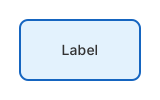
矩形 (Rect)
const box = fig.rect('标签', {
  pos: [50, 50], size: [120, 60],
  fill: '#e3f2fd', radius: 8,
  stroke: { color: '#1565c0', width: 2 }
})
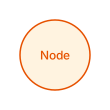
圆形 (Circle)
const node = fig.circle('节点', {
  pos: [200, 100], r: 35,
  fill: '#fff3e0', color: '#e65100'
})
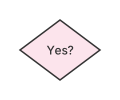
菱形 (Diamond)
const decision = fig.diamond('是否?', {
  pos: [100, 100], size: [80, 60],
  fill: '#fce4ec'
})
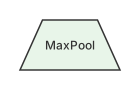
梯形 (Trapezoid)
const pool = fig.trapezoid('MaxPool', {
  pos: [100, 100], size: [100, 50],
  fill: '#e8f5e9', topRatio: 0.55
})
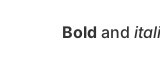
文本 (Text)
const label = fig.text('**粗体** 和 *斜体*', {
  pos: [100, 50], fontSize: 14
})
图片 (Image)
const img = fig.image('./photo.png', {
  pos: [100, 50], size: [120, 80]
})
3D 图形
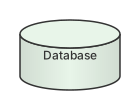
圆柱体 (Cylinder)
适合表示数据库和 CNN 特征图。depth 控制椭圆比例(0-1)。
const db = fig.cylinder('数据库', {
  pos: [50, 50], size: [100, 70],
  fill: '#e8f5e9', depth: 0.2
})
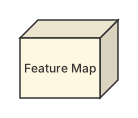
长方体 (Cuboid)
3D 方块,适合表示张量和数据体。depth 为挤出距离(像素)。
const tensor = fig.cuboid('特征图', {
  pos: [50, 50], size: [80, 60],
  fill: '#fff8e1', depth: 18
})
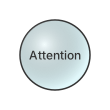
球体 (Sphere)
const node = fig.sphere('注意力', {
  pos: [100, 100], r: 35,
  fill: '#e0f7fa'
})
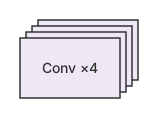
堆叠层 (Stack)
多层堆叠效果。count 设置层数,stackOffset 控制每层偏移量。
const layers = fig.stack('Conv ×4', {
  pos: [50, 50], size: [100, 60],
  fill: '#ede7f6', count: 4,
  stackOffset: [6, -6]
})
ElementConfig
所有属性均为可选,适用于任何元素类型。
| 属性 | 类型 | 说明 |
|---|---|---|
pos | [x, y] | 位置(像素或 '%') |
size | [w, h] | 尺寸(像素或 '%') |
fill | string | 填充颜色。'none' = 透明 |
fillOpacity | number | 填充透明度(0-1) |
color | string | 主题色(同时设置边框和字体颜色) |
stroke | string | StrokeConfig | 边框。'none' = 无边框 |
radius | number | 圆角半径(矩形) |
r | number | 半径(圆形/球体,默认: 30) |
opacity | number | 整体透明度(0-1) |
shadow | boolean | ShadowConfig | 阴影效果 |
padding | number | 内边距 |
fontSize | number | 字号(像素) |
fontFamily | string | 字体族 |
fontColor | string | 文字颜色 |
fontWeight | string | number | 字重 |
bold | boolean | fontWeight: 'bold' 的简写 |
topRatio | number | 梯形上下底比例(0-1,默认: 0.6) |
depth | number | 圆柱体:椭圆比例(0.15)。长方体:挤出距离(15px) |
count | number | 堆叠层数(默认: 3) |
stackOffset | [dx, dy] | 每层偏移量(默认: [6, -6]) |
{ color?: string, width?: number, dash?: number[] }虚线示例:
[6, 3] = 虚线,[2, 2] = 点线
{ dx?: number, dy?: number, blur?: number, color?: string }使用
shadow: true 启用默认阴影,或传入配置对象自定义。
嵌套容器
任何元素都可以包含子元素。子元素相对于父元素定位:
const parent = fig.rect('容器', {
  pos: [50, 50], size: [200, 150]
})

// 子元素使用百分比相对定位
parent.circle('中心', { pos: ['50%', '50%'], r: 20 })
parent.rect('左上', { pos: [10, 30], size: [60, 30] })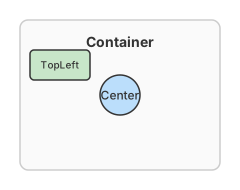
基本箭头
fig.arrow(source, target, config?)连接两个元素。未指定锚点时自动吸附到最近边缘。
fig.arrow(a, b)  // 最简形式
fig.arrow(a, b, { head: 'stealth', color: '#1565c0' })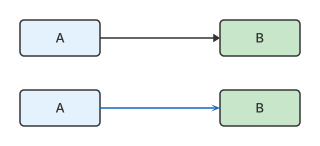
锚点
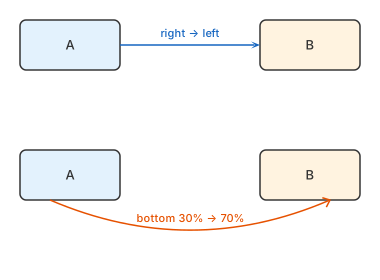
精确控制箭头连接位置:
// 简单写法:指定边
fig.arrow(a, b, { from: 'right', to: 'left' })

// 详细写法:指定边 + 边上位置(0-100%)
fig.arrow(a, b, {
  from: { side: 'bottom', at: 30 },  // 底边从左起 30% 处
  to: { side: 'top', at: 70 }         // 顶边从左起 70% 处
})
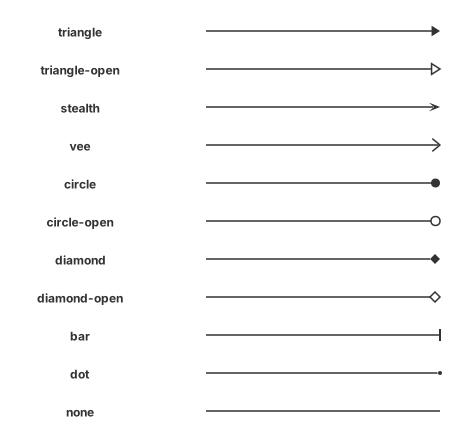
箭头头部类型
内置 11 种箭头头部样式:
| 类型 | 说明 |
|---|---|
triangle | 实心三角形(默认) |
triangle-open | 空心三角形 |
stealth | 尖锐箭头(LaTeX 风格) |
vee | V 形 > |
circle | 实心圆 |
circle-open | 空心圆 |
diamond | 实心菱形 |
diamond-open | 空心菱形 |
bar | 竖线 | |
dot | 小圆点 |
none | 无箭头 |
路径类型
| 路径 | 说明 | 额外配置 |
|---|---|---|
straight | 直线(默认) | - |
curve | 贝塞尔曲线 | curve: 弯曲程度(正值=向上) |
polyline | 直角折线 | cornerRadius: 圆角半径 |
// 曲线箭头
fig.arrow(a, b, { path: 'curve', curve: 40 })

// 带圆角的折线
fig.arrow(a, b, { path: 'polyline', cornerRadius: 8 })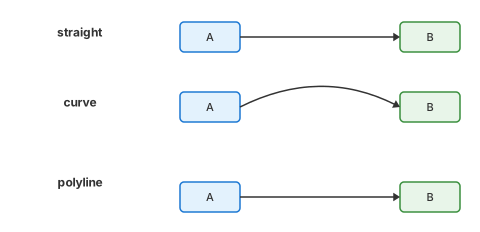
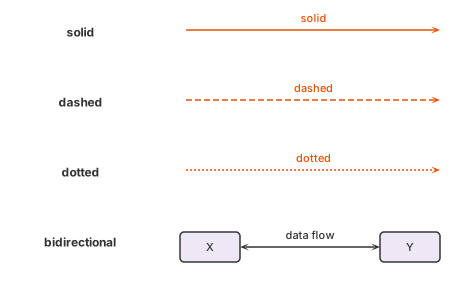
样式与标签
fig.arrow(a, b, {
  style: 'dashed',           // 'solid' | 'dashed' | 'dotted'
  color: '#e65100',
  width: 2,
  label: '数据流',
  bidirectional: true,       // 双向箭头
  headSize: 10
})
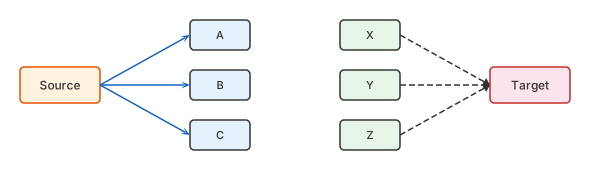
arrows() — 扇出 / 扇入
一次创建多条箭头,支持一对多和多对一:
// 扇出:一个源到多个目标
fig.arrows(source, [targetA, targetB, targetC], {
  head: 'stealth', color: '#1565c0'
})

// 扇入:多个源到一个目标
fig.arrows([srcA, srcB, srcC], target, {
  head: 'triangle', style: 'dashed'
})
fork() — 分支
创建带共享主干的分叉箭头,从一个源分裂到多个目标:
fig.fork(source, [targetA, targetB, targetC], {
  head: 'stealth',
  style: 'solid',
  color: '#333'
})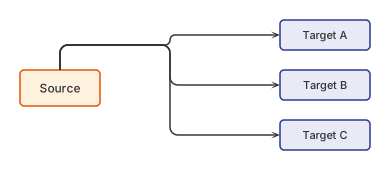
arrows() 从源到每个目标画独立箭头。
fork() 先画一条主干,然后分裂成多个分支 —— 像一棵树。
row()
水平排列元素。第一个元素需要设置 pos。
fig.row([a, b, c], { gap: 40 }) // 默认间距: 40px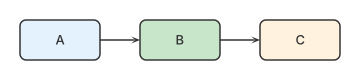
col()
垂直排列元素。
fig.col([a, b, c], { gap: 30 })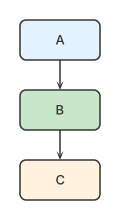
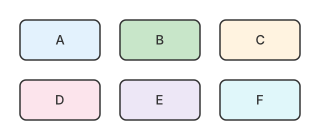
grid()
网格排列元素。
fig.grid([a, b, c, d, e, f], {
  cols: 3,        // 3 列(默认)
  gap: 20,        // 统一间距
  rowGap: 30,     // 单独设置行间距
  colGap: 15      // 单独设置列间距
})
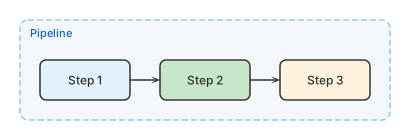
group()
在元素周围绘制带标签的分组框。需要在布局方法之后调用(需要已确定的位置)。返回一个 Rect,可作为箭头目标使用。
const frame = fig.group([a, b, c], {
  label: '流水线',
  fill: 'rgba(25,118,210,0.05)',
  stroke: { color: '#90caf9', dash: [6, 3] },
  radius: 8,
  padding: 20,
  fontSize: 11,
  fontColor: '#1565c0',
  size: [400, 200]    // 可选固定尺寸(自动居中成员)
})
Markdown 标签格式
所有元素标签支持内联 Markdown 格式:
| 语法 | 效果 | 字体 |
|---|---|---|
**粗体** | 粗体文字 | 相同字体,加粗 |
*斜体* | 斜体文字 | 相同字体,斜体 |
`代码` | 等宽字体 | codeFont (Menlo) |
$E=mc^2$ | 数学公式 | mathFont (Times New Roman) |
fig.rect('**Conv2D** $3 \\times 3 \\times 64$', { ... })
fig.text('损失函数: `cross_entropy`', { ... })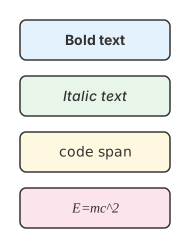
导出格式
文件格式根据扩展名自动检测:
| 扩展名 | 格式 | 引擎 |
|---|---|---|
.svg | SVG 矢量图 | 内置 |
.png | PNG 位图 | sharp |
.jpg / .jpeg | JPEG | sharp |
.webp | WebP | sharp |
.pdf | PDF 文档 | pdfkit |
// SVG
await fig.export('output.svg', { fit: true, margin: 20 })

// 高分辨率 PNG
await fig.export('output.png', { fit: true, scale: 3, margin: 30 })

// 获取 SVG 字符串(不保存文件)
const svg = fig.render({ fit: true })
ExportOptions
| 属性 | 类型 | 默认值 | 说明 |
|---|---|---|---|
fit | boolean | false | 自动裁剪到内容边界 |
margin | number | 20 | 裁剪边距(fit=true 时生效,像素) |
scale | number | 2 | 分辨率倍数(仅位图格式) |
quality | number | 90 | JPG/WebP 质量(1-100) |
导出格式展示
一份源码,所有格式。点击下方标签对比不同格式的输出效果:
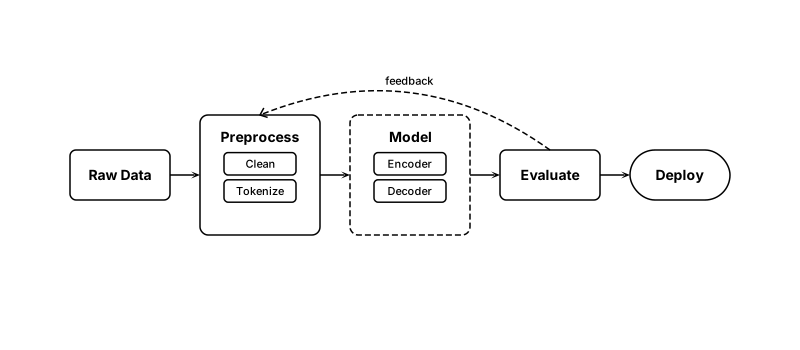
fig.export('flowchart.svg')- 矢量格式 — 无限缩放
- 文件体积最小
- 保留完整画布大小
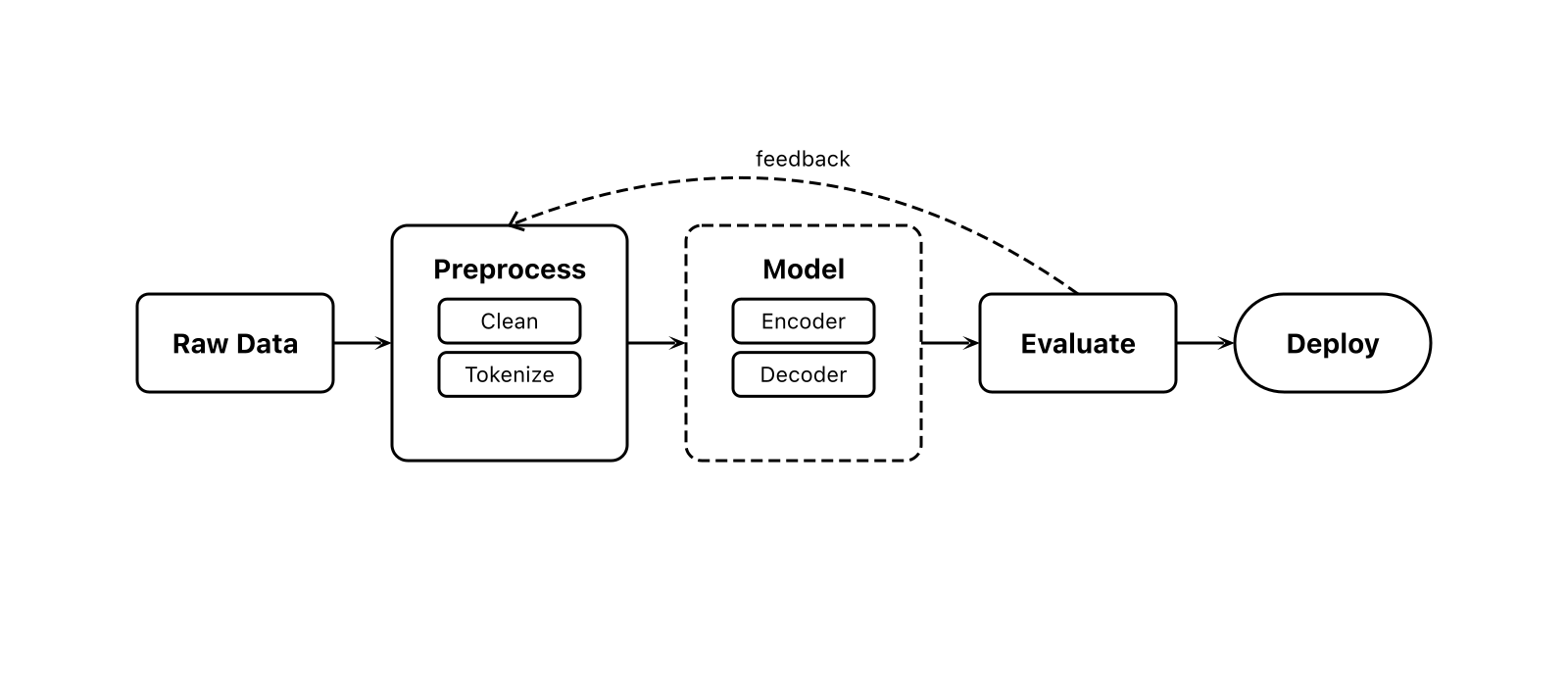
fig.export('flowchart.png')- 默认 2 倍分辨率
- 白色背景
- 完整画布大小
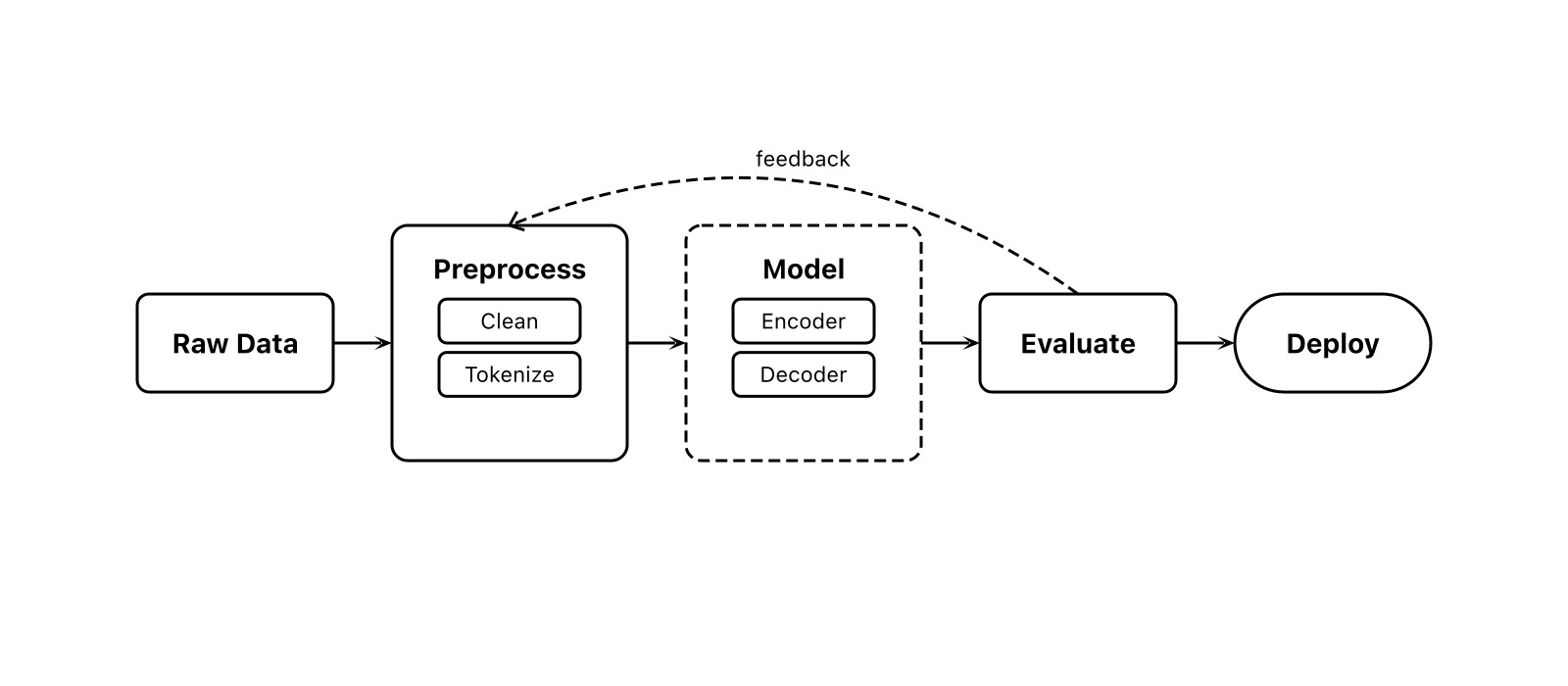
fig.export('flowchart.jpg', {
  fit: true, margin: 20
})
fit: true自动裁切- 内容周围 20px 边距
- 质量: 90(可调)
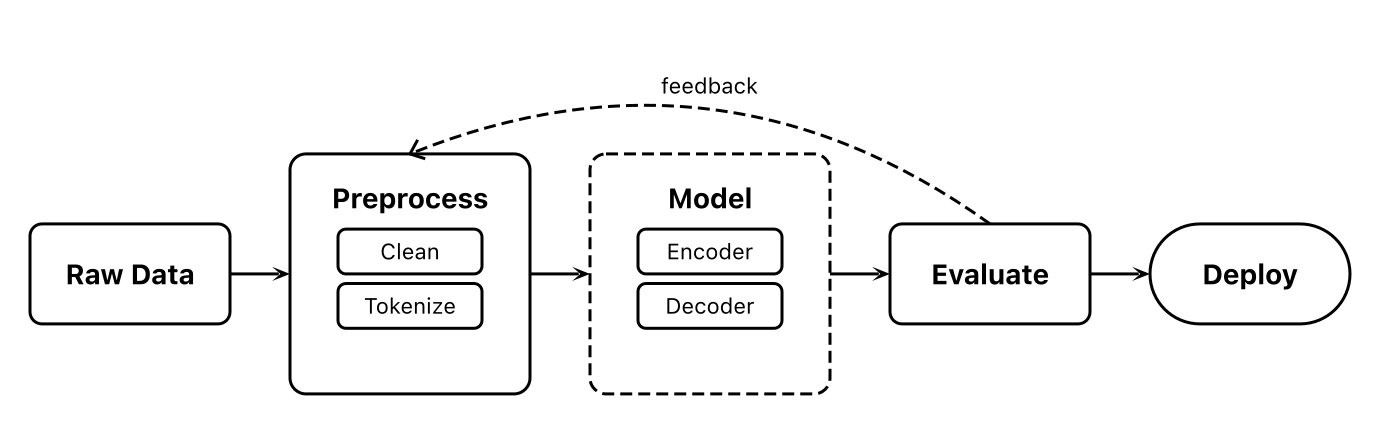
fig.export('flowchart-fit.png', {
  fit: true, margin: 20
})
fit: true自动裁剪到内容- 去除多余空白区域
- 嵌入文档时效果最佳

// 不设 bg = 透明背景
const fig = new Figure(800, 350)
fig.export('out.png', { fit: true })- 省略
bg即为透明 - 棋盘格 = Alpha 通道
- 叠加使用效果极佳
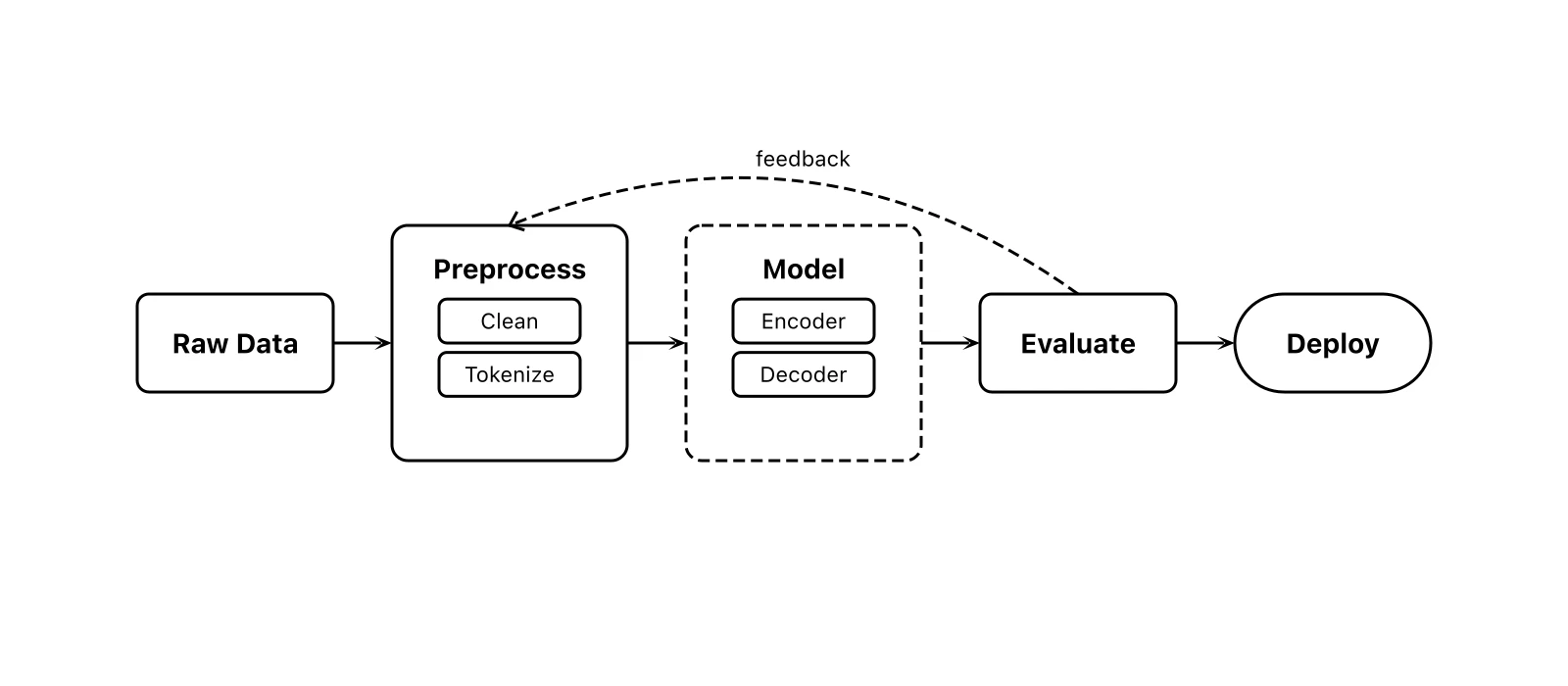
fig.export('flowchart.webp', {
  fit: true, margin: 20
})- 现代格式,体积更小
- 支持透明度
- 适合网页发布
MCP 集成
Figcraft 内置 MCP(Model Context Protocol)服务端。Claude Code、Cursor 等 AI 智能体可以无需编写代码,直接生成图表。
配置
添加到 Claude Code 或 Cursor 的 MCP 设置中:
{
  "mcpServers": {
    "figcraft": {
      "command": "npx",
      "args": ["figcraft-mcp"]
    }
  }
}然后用自然语言描述你的图表即可:"画一个 Transformer 架构图,包含编码器和解码器堆叠"。
MCP 工具
| 工具 | 说明 |
|---|---|
create_diagram | 根据 JSON 规范创建图表。返回 SVG 并可选导出到文件。 |
get_element_types | 获取完整 API 文档。AI 首先调用此工具了解 API。 |
JSON 规范格式
create_diagram 工具接受以下 JSON 结构:
{
  "width": 800,
  "height": 400,
  "bg": "#ffffff",
  "fontFamily": "Arial",
  "autoAlign": true,
  "elements": [
    {
      "id": "a",
      "type": "rect",
      "label": "输入",
      "pos": [50, 100],
      "size": [120, 60],
      "fill": "#e3f2fd",
      "radius": 6
    },
    {
      "id": "b",
      "type": "rect",
      "label": "输出",
      "pos": [300, 100],
      "size": [120, 60],
      "fill": "#c8e6c9"
    }
  ],
  "arrows": [
    {
      "from": "a",
      "to": "b",
      "fromSide": "right",
      "toSide": "left",
      "label": "data",
      "head": "stealth"
    }
  ],
  "groups": [
    {
      "members": ["a", "b"],
      "label": "流水线",
      "padding": 20,
      "stroke": "#999"
    }
  ],
  "layouts": [
    { "type": "row", "elements": ["a", "b"], "gap": 40 }
  ],
  "fanArrows": [
    { "from": "src", "to": ["a", "b", "c"] }
  ],
  "forks": [
    { "from": "root", "to": ["x", "y", "z"] }
  ],
  "export": {
    "path": "output.svg",
    "fit": true,
    "margin": 20
  }
}
Figure 类 — 所有方法
| 方法 | 返回值 | 说明 |
|---|---|---|
fig.rect(label, config?) | Rect | 创建矩形 |
fig.circle(label, config?) | Circle | 创建圆形 |
fig.text(content, config?) | Text | 创建文本标签 |
fig.image(src, config?) | Image | 创建图片 |
fig.diamond(label, config?) | Diamond | 创建菱形 |
fig.trapezoid(label, config?) | Trapezoid | 创建梯形 |
fig.cylinder(label, config?) | Cylinder | 创建 3D 圆柱体 |
fig.cuboid(label, config?) | Cuboid | 创建 3D 长方体 |
fig.sphere(label, config?) | Sphere | 创建 3D 球体 |
fig.stack(label, config?) | Stack | 创建堆叠层 |
fig.arrow(src, tgt, config?) | void | 单条箭头 |
fig.arrows(src, tgt, config?) | void | 扇出 / 扇入 |
fig.fork(src, targets, config?) | void | 分支箭头 |
fig.row(els, opts?) | void | 水平布局 |
fig.col(els, opts?) | void | 垂直布局 |
fig.grid(els, opts?) | void | 网格布局 |
fig.group(members, config?) | Rect | 分组框 |
fig.font(name, source?) | void | 注册字体 |
fig.render(opts?) | string | 渲染为 SVG 字符串 |
fig.export(path, opts?) | Promise | 导出到文件 |
ElementConfig — 完整参考
| 属性 | 类型 | 默认值 | 说明 |
|---|---|---|---|
pos | [PosValue, PosValue] | - | 位置 [x, y],像素或 '%' |
size | [PosValue, PosValue] | 自动 | 尺寸 [宽, 高] |
fill | string | - | 填充颜色。'none' = 透明 |
fillOpacity | number | 1 | 填充透明度(0-1) |
color | string | - | 主题色(边框 + 字体颜色) |
stroke | string | StrokeConfig | - | 边框配置 |
radius | number | 0 | 圆角半径(矩形) |
r | number | 30 | 圆形/球体半径 |
opacity | number | 1 | 整体透明度 |
shadow | boolean | ShadowConfig | false | 阴影效果 |
padding | number | - | 内边距 |
fontSize | number | 14 | 字号(像素) |
fontFamily | string | 继承 | 字体族 |
fontColor | string | #000 | 文字颜色 |
fontWeight | string | number | normal | 字重 |
bold | boolean | false | 加粗简写 |
topRatio | number | 0.6 | 梯形比例 |
depth | number | 因类型而异 | 3D 深度 |
count | number | 3 | 堆叠层数 |
stackOffset | [number, number] | [6, -6] | 堆叠偏移 |
ArrowConfig — 完整参考
| 属性 | 类型 | 默认值 | 说明 |
|---|---|---|---|
from | AnchorSpec | 自动 | 源锚点 |
to | AnchorSpec | 自动 | 目标锚点 |
label | string | - | 文本标签 |
labelOffset | number | 自动 | 标签偏移量 |
style | string | 'solid' | 'solid' | 'dashed' | 'dotted' |
color | string | '#000' | 箭头颜色 |
width | number | 1.5 | 线宽 |
head | ArrowHead | 'triangle' | 头部类型 |
headSize | number | 自动 | 头部大小 |
bidirectional | boolean | false | 双向箭头 |
path | ArrowPath | 'straight' | 路径类型 |
curve | number | 0 | 弯曲程度 |
cornerRadius | number | 0 | 折线圆角半径 |
ExportOptions — 完整参考
| 属性 | 类型 | 默认值 | 说明 |
|---|---|---|---|
scale | number | 2 | 分辨率倍数(位图格式) |
fit | boolean | false | 自动裁剪到内容 |
margin | number | 20 | fit=true 时的边距(像素) |
quality | number | 90 | JPG/WebP 质量(1-100) |
MCP 集成 — 让 AI 直接生成图表
Figcraft 内置 MCP(Model Context Protocol)服务器,配置后 AI 助手可以用自然语言直接生成专业图表,无需手写代码。
配置方法
在 AI 客户端的 MCP 配置中添加:
Claude Desktop / Claude Code
{
  "mcpServers": {
    "figcraft": {
      "command": "npx",
      "args": ["figcraft-mcp"]
    }
  }
}
Cursor
在 Cursor Settings → MCP Servers 中添加相同配置。
前置条件:只需安装 Node.js 18+,首次运行时 npx 会自动下载 figcraft 包,用户无需手动安装。
可用工具
| 工具 | 说明 |
|---|---|
get_element_types |
获取完整 API 文档。AI 会先调用此工具了解所有可用的元素类型、箭头选项和配置参数。 |
create_diagram |
传入 JSON 规格,创建图表并导出文件。支持 10 种元素、11 种箭头、布局系统和多格式导出。 |
使用示例
配置完成后,直接用自然语言描述:
- "画一个包含输入、处理、输出三个步骤的流程图"
- "画一个 Transformer 架构图,包含 Encoder 和 Decoder"
- "画一个数据库 ER 图,用户表关联订单表"
AI 会自动调用 create_diagram,传入完整的 JSON 规格,生成 SVG/PNG 文件。
JSON 规格示例:
{
  "width": 600, "height": 200, "bg": "#fff",
  "elements": [
    { "id": "a", "type": "rect", "label": "输入", "pos": [50, 80], "size": [100, 50], "fill": "#e3f2fd", "radius": 6 },
    { "id": "b", "type": "rect", "label": "处理", "pos": [250, 80], "size": [100, 50], "fill": "#fff3e0", "radius": 6 },
    { "id": "c", "type": "rect", "label": "输出", "pos": [450, 80], "size": [100, 50], "fill": "#c8e6c9", "radius": 6 }
  ],
  "arrows": [
    { "from": "a", "to": "b", "head": "stealth", "path": "polyline" },
    { "from": "b", "to": "c", "head": "stealth", "path": "polyline" }
  ],
  "export": { "path": "flow.png", "fit": true, "margin": 20, "scale": 2 }
}
v0.2.0 自动路由特性
MCP 模式同样支持最新的智能路由能力:
- 自动方向选择 — 不指定
fromSide/toSide,系统自动选择最优连接边 - 自动避障 —
path: "polyline"的箭头自动绕开路径上的其他元素 - 自动拉直 — 近似水平/垂直的箭头自动吸附对齐
这意味着 AI 生成图表时不需要精确计算锚点方向,大幅提升首次生成的正确率。
v0.2.0 更新日志
2026-02-02
智能自动路由
箭头现在可以完全自动选择最优路径,无需手动指定 from / to:
- 系统根据元素相对位置自动判断出发边和到达边
- Polyline 自动选择水平起步、垂直起步或 U 型环绕模式
- 当出口/入口方向冲突(如
from: 'left', to: 'right')时自动切换为 U 型环绕路径
Polyline 避障系统
- 折线箭头自动检测与第三方元素的碰撞并绕行
- 垂直段碰撞 → 左右偏移;水平段碰撞 → U 型绕行
- 多障碍物合并包围盒,单次绕行避免路径震荡
- 方向选择前检查候选位置是否与其他障碍物冲突
内部优化(无需改动代码)
- 箭头自动拉直 — 差值 <8px 的端点自动吸附为完美水平/垂直
- 形状感知锚点 — Trapezoid 的 top 边按 topRatio 收窄,Cylinder 贴合椭圆面
- 标签智能定位 — Polyline 标签自动放在最长段中点,限制在画布内
- 布局居中修正 —
row()/col()/grid()正确处理 Circle/Sphere 的圆心定位
支持的形状
所有 8 种形状均支持自动路由与避障:Rect、Circle、Diamond、Trapezoid、Cylinder、Cuboid、Sphere、Stack